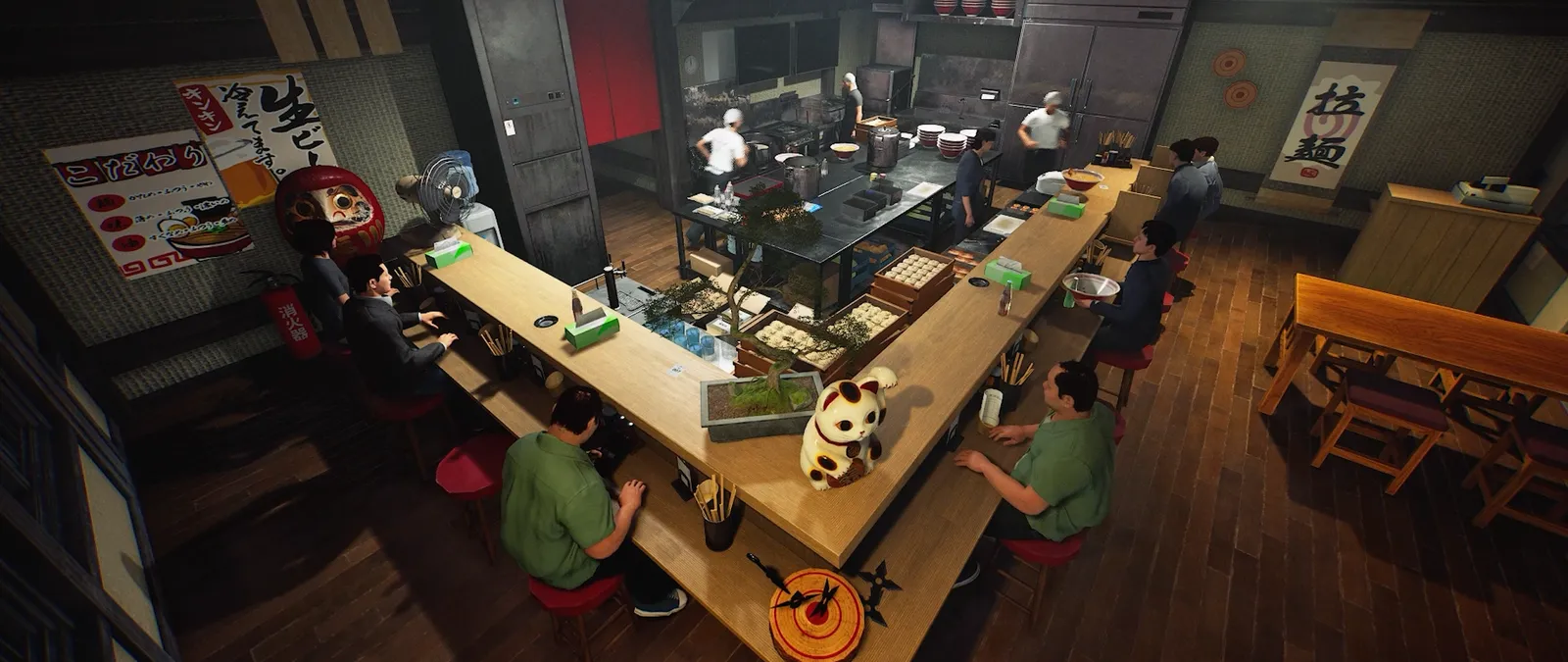

Play solo or with up to six players
The developer describes online co-op, spatial voice chat and part-time NPC staff for solo play. Save ownership and reconnection behaviour still need testing.
Steam + Day 1 patch notes · checked 12 Oct 2026Make a shift plan →Which way of playing fits your group?
Start with the number of people and where they will play. This comparison uses the same official descriptions cited above; it does not assume unannounced local or cross-platform modes.
| Your situation | What the official material confirms | Decision you can make now |
|---|---|---|
| Playing alone | Solo play and hireable part-time NPC staff. | You do not need to assemble a human team. The Day 1 update adds dish-clearing staff; hiring costs and actual performance remain untested here. |
| Playing online with friends | Online cooperation with a total group limit of six. | Keep your planned group within that limit; six is not a minimum. Check that everyone has installed the current update before comparing session behavior. |
| Sharing one computer or screen | Split-screen and local multiplayer are not confirmed in the material checked. | Do not treat the online co-op label as proof that several people can share one device. |
| Joining from different platforms | The released platform listed is Windows PC on Steam; cross-platform play is unconfirmed. | Use the platform guide before making plans around a console or another operating system. |
The remaining choice is how to share the work once you are in a session. That is what the 1–6 player shift planner is for; it allocates suggested responsibilities without assuming fixed in-game roles.
Does it have voice chat?
Yes. The official description confirms spatial voice chat: distance and walls affect how voices sound. The Day 1 notes also confirm mute and push-to-talk settings and report a fix so they apply immediately after a player joins multiplayer. We have not tested microphone selection, key bindings, volume controls or a complete troubleshooting procedure. Official Steam description · Day 1 update
Joining stuck, invitation code missing or voice settings not applying?
First compare your installed build with the official update notes. The October 9 Day 1 update, v0.1.48.17626, lists changes directly relevant to these symptoms:
| Symptom | What the developer reports in Day 1 | What to record if it continues |
|---|---|---|
| Joining an ongoing session stops during item synchronization | A fix for joining that stalled at that stage. | Your build, the last visible stage and whether other players are already in the shop. |
| A room is temporarily not found by invitation code | Improved automatic searching for this situation. | The error wording and whether the session remains available; keep the actual invitation code private. |
| A connection fails | The interface now reports a cause, suggested solutions and an error code. | The exact code and message, then which suggested step you tried and its result. |
| Mute or push-to-talk behaves differently just after joining | A fix so those settings apply immediately after joining. | Whether it affects every participant or only one, and whether nearby voice works. |
Source: official v0.1.48.17626 notes. These are version-specific developer reports; they do not prove that every player’s connection or voice problem has been resolved. A later build may include these changes, but matching a version number is not a diagnosis of your session. Our update guide separates these launch fixes from the October 10 changes.
Use the game’s displayed error information before trying unrelated changes. We do not have evidence for a required port-forwarding setup, a particular router change or a reinstall as a universal remedy. A report with the build, exact message and failed stage is more useful than treating all joining failures as the same bug.

Plan a first session without assuming untested features
Public Early Access began on October 9. The sequence below helps a group observe its first session without guessing menu names or save rules. It is an editorial checklist, not a hands-on host/join tutorial. Check the release history if an older guide still says the game is unavailable.
Before the session: confirm Steam App 4968640, compare each computer with the published requirements and decide how the group will communicate if in-game voice is not yet working. Name one person to coordinate joining and keep the notes. That is an organisational choice, not a claim about the game’s host or save-owner rules.
Read the connection and session choices actually shown in your installed build. Write down the visible option used by the person starting the session and the option used by a joining player. If the joining route is not clear, ask through the developer’s channels before treating an invitation method from another game as applicable here. Keep private invitation details within the group.
Start with a short session in which the group is comfortable checking the basics before investing in a long-running shop. Follow this order so each observation has a clear meaning:
| Stage | What to do in your first session | What counts as useful evidence |
|---|---|---|
| 1. Confirm everyone arrived | Each person describes the shop they see and confirms the other participants they can identify. | A record of who reached the same session; a sent invitation alone does not establish that someone joined. |
| 2. Check one shared action | Choose an ordinary action the game currently allows. Have one person perform it and another describe the visible result. | Both players identify the same action and result. If they see different states, record the difference before trying several unrelated changes. |
| 3. Establish a voice baseline | When voice is available, start a conversation nearby and note whether each person can hear the other. Then compare at a greater distance or across a wall if the scene permits. | Separate “never heard this person” from “became quieter farther away”. Spatial differences are announced; the exact controls and actual audio result still need observation. |
| 4. Agree the first work split | Use the shift planner to name who covers supplies, cooking, service and clearing. | Each person can say their next job and who they will tell when it is finished. A role plan does not establish save ownership. |
Check returning to the shop before a long session
Joining successfully and keeping progress are separate outcomes. Steam lists Steam Cloud, but that badge does not identify whose co-op shop is saved or whether another player can continue without the person who started it. The store description does not resolve those questions. Current Steam features.
Use a short session you are willing to stop. Observe normal in-game exit and continuation options only; this plan does not require deliberately interrupting the network, forcing a crash, deleting a save or overwriting a shop. If a prompt warns about unsaved progress or an irreversible choice, stop and read it before proceeding.
| Order | Observation to make | Record before moving on |
|---|---|---|
| Record the starting state | Note the build shown by the game, the person who started the session and one recognisable detail in the shared shop. Look for any save information the game actually displays. | The visible state and any exact save message. If no save confirmation is shown, write that rather than assuming progress has been stored. |
| One joining player leaves normally | Keep the other participants in place. The departing player uses an exit option supplied by the game, then tries the joining route available in that build. | Whether leaving ended the whole session; whether that player could return; and which shop state they saw on return. Check these separately. |
| End the session normally | After the first observation is complete, agree to stop and follow the game’s displayed prompts. | Who ended it, what the prompt said and whether any save confirmation appeared. A person leaving is not itself proof that everyone’s progress was saved. |
| Try the next session | Ask the person who previously started the session to use the continuation choice actually offered, if one is available. Compare the shop with the earlier note, then have a friend try joining. | Whether the shop resumed, whether the recorded detail remained and whether the friend could join. Do not combine those into a single “co-op works” result. |
If no continuation option is clear, or the expected shop state is missing, stop the check and collect the details below before starting over. Do not overwrite another shop merely to see what happens. One successful return describes that attempt and build; it does not prove host migration, every guest’s independent progression or recovery after a crash.
Ask for help with a reproducible session report
A report such as “multiplayer is broken” leaves the developer guessing which stage failed. Keep the report to the attempted action and the result. You do not need to publish account credentials or a private invitation to make it useful.
| Include | Why it helps |
|---|---|
| Date, approximate time and game build/version if visible | Identifies the release and observation; if no build is displayed, say so. |
| Number of people and who started/joined the session | Distinguishes the organiser’s view from a joining player’s view without assuming those roles own the save. |
| Exact option or prompt you used | Reconstructs the joining, leaving or continuing route without relying on a guessed menu name. |
| What you expected and what actually appeared | Separates a join failure, voice issue, missing shop state or a friend who cannot return. Include the exact error wording if there is one. |
| Whether one person or the whole group was affected | Shows the scope of the observation. For voice, mention the nearby comparison separately from distance or walls. |
| One repeat attempt, if safe, and what changed | A repeatable sequence is more informative than several unrecorded changes at once. Do not repeat an action that risks overwriting progress. |
Example report structure — fictional, not a game result: “Three people joined one shop. After Player B used the exit option shown on screen, the other two remained. Player B then tried the same joining route; this time a message appeared. Attached are that message and the build information.” Replace the example with what you actually observed; do not supply a diagnosis until you have evidence for it.
Use the developer’s feedback channels linked from the official Steam listing. Crop screenshots to the relevant prompt and remove private invitation details or unrelated personal information. For a mistake in this wiki’s description, use Ramen Sim HQ’s correction contact. The wiki cannot inspect your session or recover a game save.
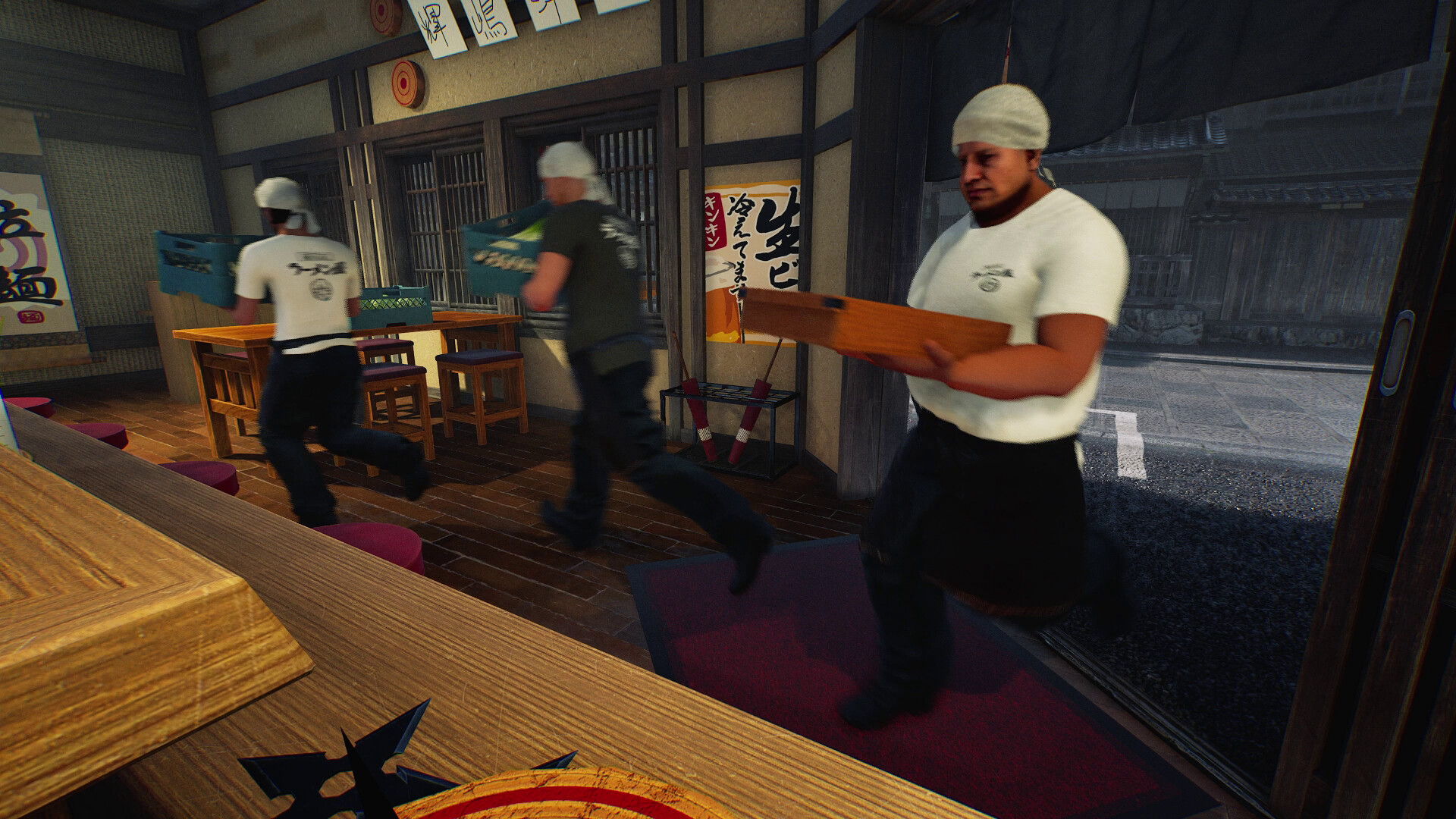
Questions that still need a release-build check
We have not verified how to create or join a session, who owns the save, whether guests retain progression, what happens when a host disconnects, or how reconnection works. Split-screen, dedicated servers and cross-platform play are also unconfirmed in the materials checked here.
If you are choosing the game specifically for one of those features, wait for an explicit developer answer or a demonstrated test. A player limit and an online co-op label do not answer questions about save ownership or hosting.
Official co-op descriptions and versioned multiplayer changes rechecked 12 October 2026. The first-session and reporting checklists remain editorial suggestions. No gameplay test, guaranteed connection fix or confirmed save-ownership rule is claimed.
Questions players are asking
Topics seen in the public Steam community, answered against official sources. Checked 12 October 2026; these are source checks, not hands-on game tests. Community links lead to the observed hub or discussion listing; we have not verified individual replies.
Why can’t I join or invite a friend?
The player question: A player reports a connection timeout even after restarting, including a VPN-related message despite saying no VPN was in use. View the community source →
What the official sources establish: The Day 1 update fixes one joining hang during item synchronization and improves searches for rooms using an invitation code. It also improves connection-error explanations. This does not establish the cause of every timeout. Check both installed versions and keep the exact error text, whether you hosted or joined, and the point where it failed for a useful report; see the checklist above.