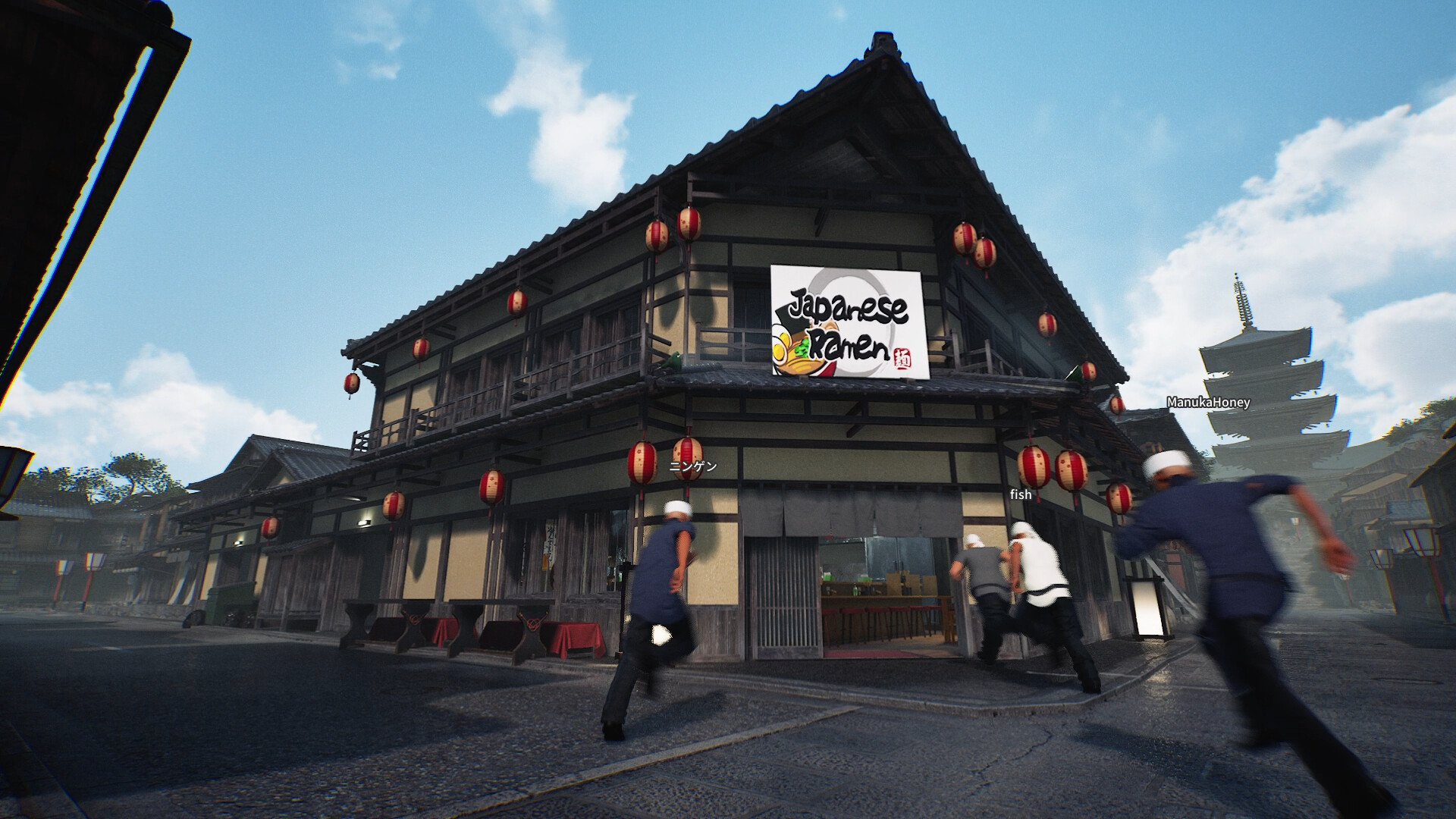
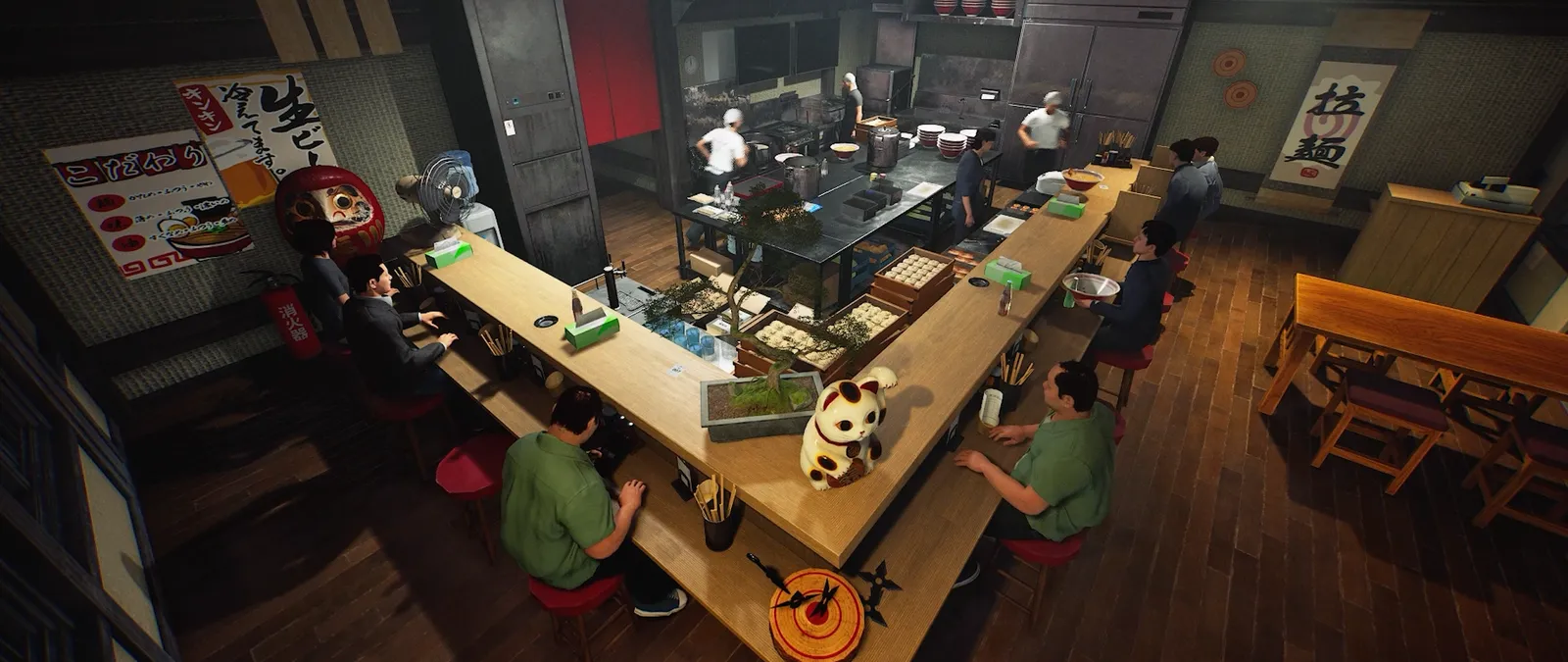
Windows PC · 8 GB minimum / 16 GB recommended RAM
The published listing asks for 10 GB of storage. Its i5 / i7 CPU descriptions omit generation and model, so this is a specification comparison, not a performance guarantee.
Steam specifications · source check: 12 Oct 2026Official specifications
These are the values listed by the developer on Steam, including the broad processor labels and VRAM qualification. They are not results from our own hardware tests.
| Component | Minimum | Recommended |
|---|---|---|
| Architecture | 64-bit processor and OS | 64-bit processor and OS |
| Windows | 10, 64-bit | 11, 64-bit |
| CPU | Intel Core i5 | Intel Core i7 |
| RAM | 8 GB | 16 GB |
| GPU | NVIDIA GTX 1060 / Radeon RX 580 | NVIDIA GeForce GTX 1660 / Radeon R9 390X |
| VRAM qualification | 6 GB or more | 6 GB or more |
| DirectX | 11 | 12 |
| Network | Broadband internet | Broadband internet |
| Free storage | 10 GB | 10 GB |
Source: Steam’s system requirements, rechecked 12 October 2026. The published hardware values remain unchanged from our earlier comparison.
What this table cannot tell you
The CPU entries do not give a model or generation. “I have an i5” is therefore insufficient to settle compatibility. The graphics entries also carry a separate VRAM condition; do not remove that condition when comparing a card with the list.
The listing provides no target resolution, settings preset or frame rate. “Recommended” should not be converted into a promise of 60 fps, especially without a measured scene and hardware configuration. The storage requirement is not a verified download size.
For a useful compatibility check, record your exact CPU and GPU models, video memory, system RAM, Windows version and available disk space. Keep any later performance report tied to those details and the game build.
We have not tested Steam Deck, compatibility layers or other operating systems. Native support, ability to launch and comfortable play are separate questions; this table alone answers none of those for a handheld.
Find your PC details in Windows
Keep the specification table open and make a short hardware note. These steps use Windows tools documented by Microsoft; they are not an in-game performance test.
1. Find the CPU, system RAM and Windows type. Open Settings → System → About. Copy the full processor name, installed RAM and system type from Device specifications, then the Windows edition and version from Windows specifications. Keep the numbers after “Core i5” or “Core i7”: the family name alone leaves out the model. Microsoft: find your device information.
2. Identify the GPU separately. Open Task Manager and select Performance, then a GPU entry. Record the graphics model and dedicated memory capacity, rather than the amount currently in use. If several GPUs appear, note each model; “GPU 0” is an identifier, not a performance rating. For a discrete graphics card, dedicated memory is its VRAM. Shared GPU memory comes from system RAM, so do not add it to dedicated VRAM to claim that the 6 GB condition is met. Microsoft notes that this view requires a WDDM 2.0 or later driver; a missing GPU panel does not mean the computer has no graphics hardware. Use the PC or graphics-card maker’s specification page to resolve a missing or unclear reading. Microsoft: GPU information in Task Manager.
3. Read the installed DirectX version. Search Windows for dxdiag, open the DirectX Diagnostic Tool and read DirectX Version on its System tab. Record that value alongside the GPU model; the version number by itself is not a performance result. Microsoft: check DirectX.
4. Check the drive you will install on. Open File Explorer → This PC and read the free space under Devices and drives. Compare the destination drive’s available space with 10 GB, not its total capacity or another drive’s free space. Microsoft: check drive space.
Turn those details into a useful decision
Compare one row at a time. RAM, VRAM and drive space are separate resources: spare capacity in one does not satisfy a shortfall in another.
| Your finding | What it means for this game | Useful next step |
|---|---|---|
| RAM, dedicated VRAM or free storage is below a stated minimum | Your note has identified a specific mismatch with the published specification. | Resolve that item before describing the PC as meeting the listed minimum. A match elsewhere does not cancel it. |
| You have an exact CPU model, but Steam only says “Core i5” or “Core i7” | The store does not provide a precise processor to compare against. | Keep the exact model when asking for clarification; do not turn the broad label into a guaranteed result. |
| Your GPU is different from either named card | A matching amount of VRAM alone does not establish equivalent graphics performance. | Look for a developer answer or a measured report using that GPU and the same game build. |
| Every numeric value meets the listed minimum | No numeric shortfall was found in that comparison. | Keep the CPU/GPU qualifications in view. Frame rate, resolution and settings still need a performance test. |
Worked example — invented hardware note, not a benchmark. A reader records 16 GB system RAM, a discrete GPU with 4 GB dedicated memory and 20 GB free on the installation drive. The RAM reaches Steam’s recommended value and the free space exceeds the listed storage requirement. The 4 GB VRAM figure is still below the stated 6 GB condition. The next action is to clarify graphics suitability; calling the whole PC “recommended” from its RAM would skip the limiting detail.
When requesting help, share the exact CPU and GPU names, dedicated VRAM, RAM, Windows version and destination-drive free space. If you later report performance, add the game build, resolution, graphics settings and the scene you measured. That gives another reader something they can compare with their own machine.
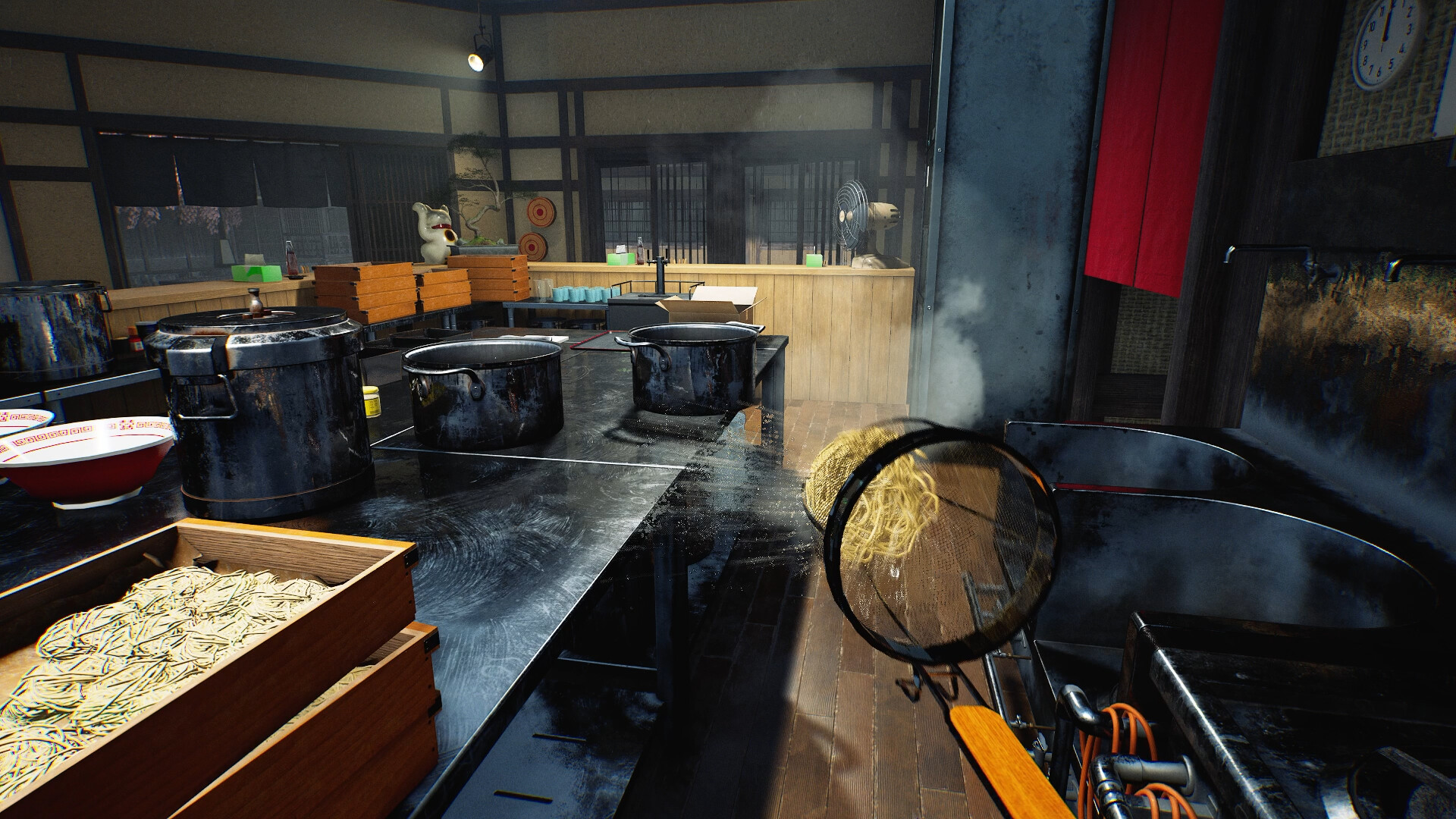
Can I use third-person view?
Yes. Wild Dog describes switching between first-person and third-person views, so you can choose how you see the kitchen and your character. The developer presents this as an option for player comfort. We have not verified the switching key or the menu location. Official Steam description.
Controller and Steam Deck: what is actually confirmed?
Steam’s current official feature data lists Partial Controller Support. That is a more specific statement than the user-defined Controller tag, and it must not be relabeled as full support. It does not establish that every menu can be completed without a mouse or keyboard, or provide a verified button layout for your controller. Official Steam app details.
The Day 1 update v0.1.48.17626 documents several gamepad fixes, including My Designs drawing, purchasing-terminal design controls and selection on the My Ramen photo screen. It also adds right-stick scrolling for the list of newly unlocked items. These are developer-reported changes in that version, not our test of every controller or screen. Official Day 1 notes.
Steam Deck remains untested by this wiki. Partial controller support and a Windows specification table do not establish Deck verification or Linux compatibility. We have not verified a current Deck certification result, performance target or complete handheld setup. Check the store’s current compatibility information before buying specifically for a handheld.
Which interface languages are listed?
Steam lists English, French, Italian, German, Spanish (Spain), Portuguese (Brazil), Simplified Chinese, Traditional Chinese, Japanese and Korean for the interface. Interface support does not mean that all dialogue has recorded audio in each language. Russian is not in this list. We have not verified the in-game language-switching procedure. Steam’s language table.
The v0.1.50.17746 update changes the Auto language setting so that a PC language not supported by the game falls back to English. If an unsupported language previously caused confusing interface behavior, this is a relevant version check; it does not add translation for that language. October 10 official notes.
A useful check before buying
| Check | What to compare |
|---|---|
| Computer | Exact CPU, GPU, video memory, RAM, Windows version and free space against the published table. |
| Camera | First-person and third-person are described; the actual switching control remains untested here. |
| Input device | Steam currently lists Partial Controller Support. Keep a mouse and keyboard available unless your intended setup has been demonstrated. |
| Language | Check the interface column separately from full audio. |
| Availability | Read the current release update and check Steam before arranging a session. |
Questions players are asking
Topics seen in the public Steam community, answered against official sources. Checked 12 October 2026; these are source checks, not hands-on game tests. Community links lead to the observed hub or discussion listing; we have not verified individual replies.
Can I rely on controller support?
The player question: A player raised controller support in Steam discussions. View the community source →
What the official sources establish: Steam currently labels the game as having Partial Controller Support for Xbox controllers. This is not a guarantee that every menu or input is covered. Steam Deck compatibility has not been verified by this wiki; we have not tested a Deck or a controller layout.
Is Russian supported?
The player question: A player asked about Russian-language support in Steam discussions. View the community source →
What the official sources establish: Russian is not among the ten interface languages currently listed on Steam. A future addition is unconfirmed. Check that table before buying if a particular language is essential; a translation request is not an announced localisation.
Why does Japanese Ramen Simulator start in Japanese?
The player question: A player reported opening the game to Japanese menus; the topic was visible in the public discussion listing. View the community source →
What the official sources establish: Wild Dog’s v0.1.50.17746 update says Auto now selects English when the PC language is unsupported. If this matches your situation, check that Steam has installed that version or a newer one, then recheck the language setting. The fix is specific to unsupported PC languages; it is not an explanation for every unexpected language choice. We have not verified a click-by-click menu path.