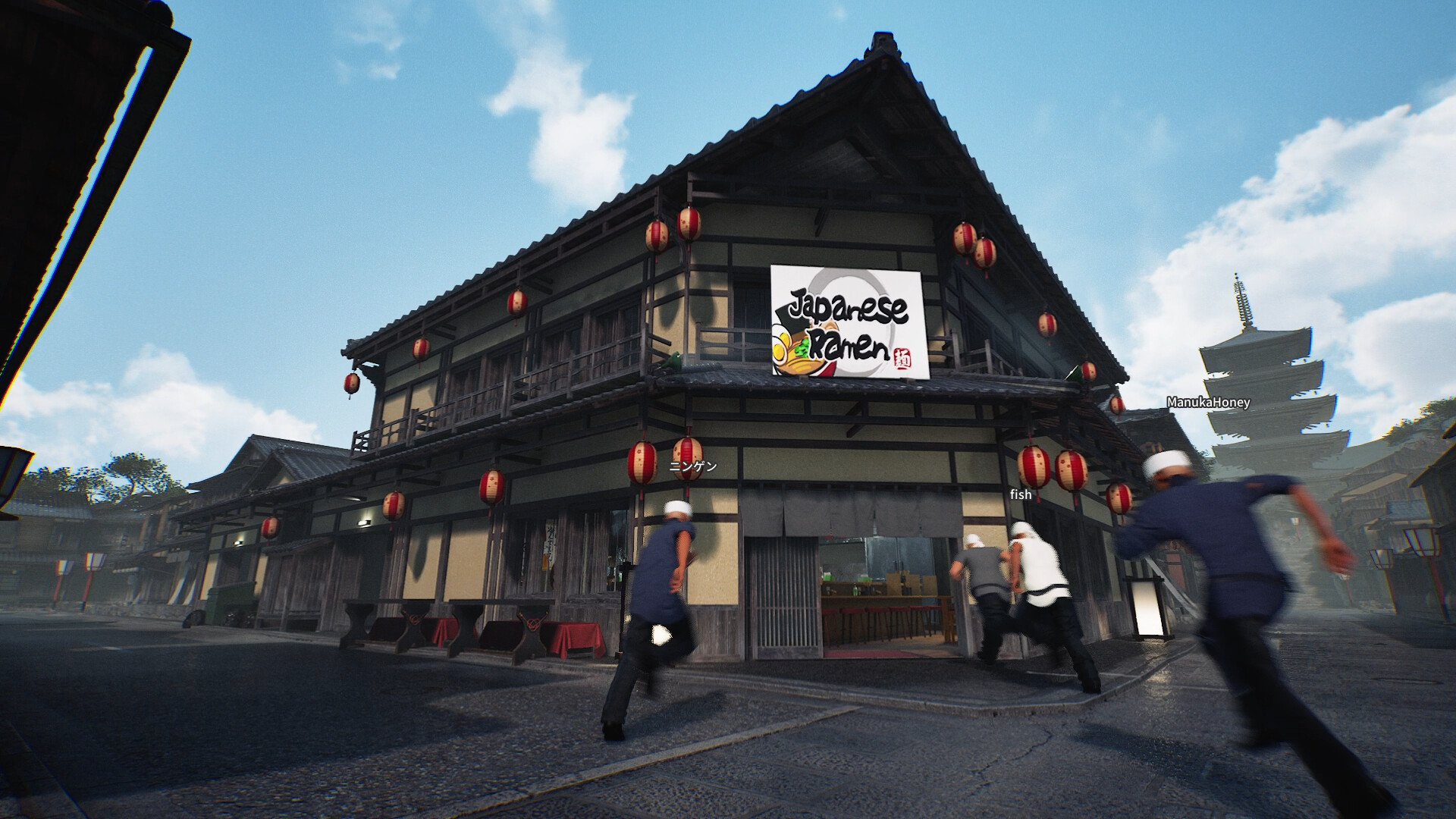
Four camera choices are named in the new patch.
The 28 October update adds adjustable third-person distance with three presets, right- or left-shoulder positioning, a toggle for the camera pulling back while running, and adjustable zoom strength when adding toppings. The developer presents these as comfort options; no setting can be promised to suit everyone.
Keep these distinctions clear
| Question | Confirmed information |
|---|---|
| Distance | Choose a preferred third-person distance or one of three presets. |
| Shoulder | Position the third-person view over the right or left shoulder. |
| Running | Toggle the pullback that occurs while running. |
| Toppings | Adjust the strength of zoom while adding toppings. |
Test distance where you actually work
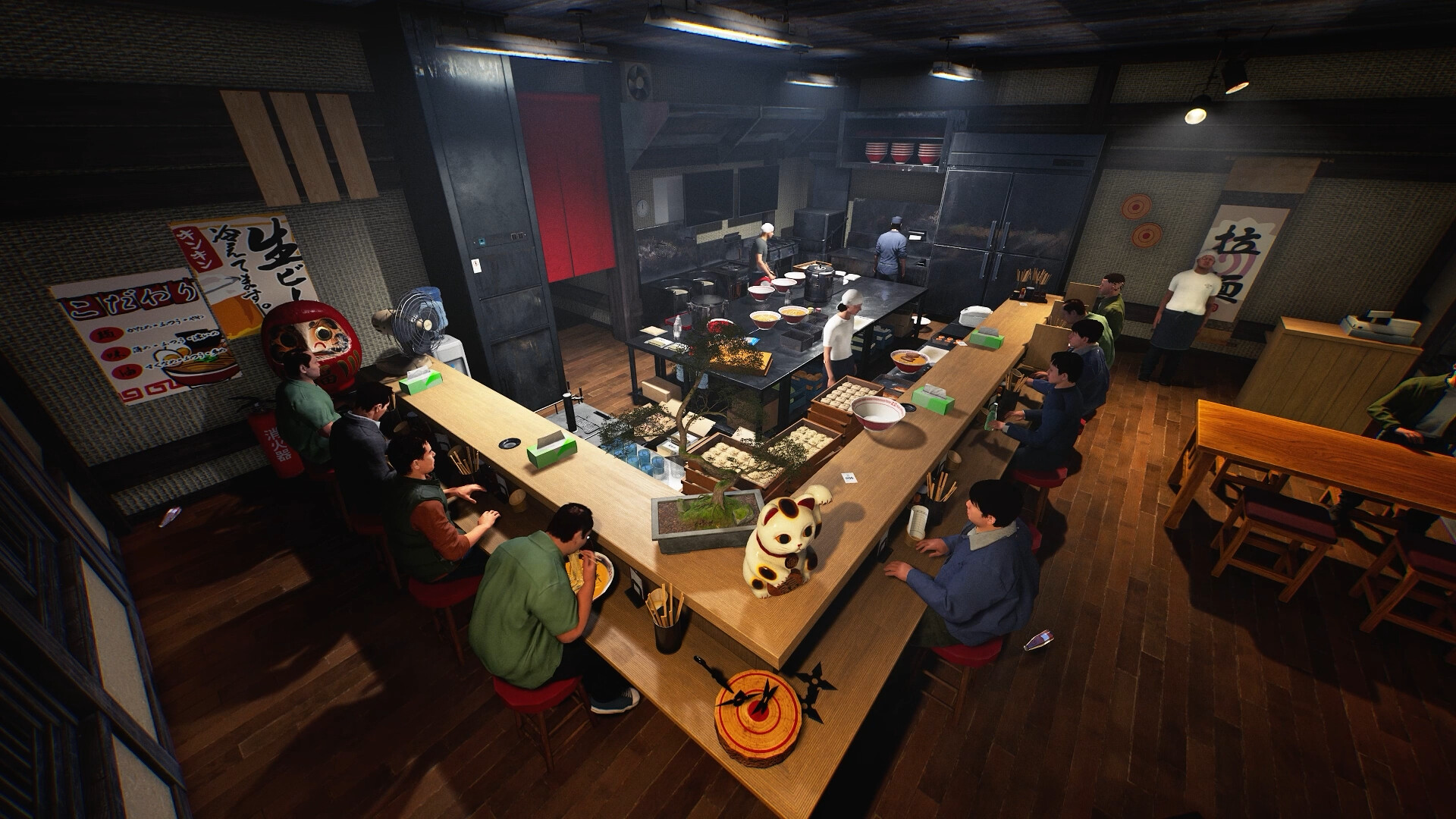
Start at a familiar work area rather than judging only an empty room. Look at the surface you use, the object you hold and the route out of the station. A view that reveals more surroundings may also make a small object harder to read. A close view may feel precise while hiding something you need nearby.
The patch supplies three presets and an adjustable preferred distance, but it does not publish numeric preset values. Choose a preset as a starting point, then compare the same short action from the same position. Record which view you prefer without turning that preference into an official recommended value.
Use one repeatable task: recognise an object, approach the station, then move away. Compare visibility and ease of reading, not just how attractive the screenshot looks.
Swap shoulders before rebuilding the room
Right- and left-shoulder positioning can change which side of the character occupies the view. Try both while facing the same counter and when moving along a nearby route. This is a way to investigate the view, not proof that camera position changes collision, reach or the underlying kitchen layout.
If an obstruction remains, describe what is hidden and when. A stationary object obscured by the character, a camera shift during movement and an unreadable interaction prompt are different observations. Keeping them separate makes it easier to decide whether another camera control or a layout change is worth trying.
Isolate the running pullback
The running option controls the camera pulling back while you run. Compare a short movement with it on and off, leaving the base distance unchanged for that comparison. Otherwise two moving settings can make it difficult to identify what you liked or disliked.
The developer’s aim is to give players more control over comfort. We have not tested these settings as a remedy for motion sickness, and a specific preset is not a universal solution. Keep the comparison brief and choose what feels usable to you rather than forcing yourself to complete a test that is unpleasant.
If a change of framing is the part you dislike, compare the running toggle before repeatedly altering the entire base view.
Tune topping zoom as its own interaction
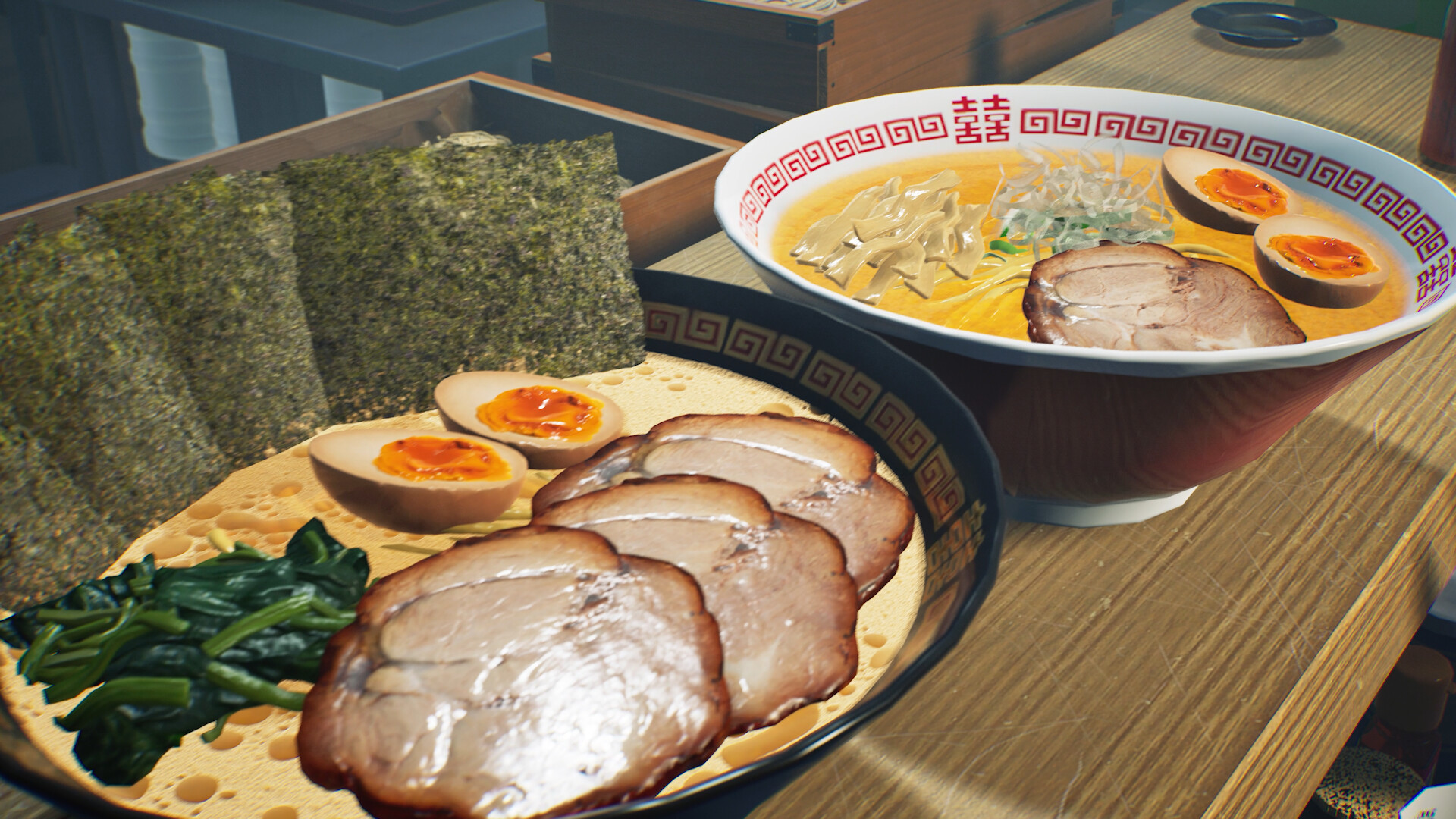
Adding toppings has a separate zoom-strength option. Check the ingredient and bowl while using that interaction, then compare a different strength. The aim is to find enough detail to recognise your placement without an unwanted change of framing. The source does not give a best value or claim that zoom alters the recipe result.
Once you have a combination you like, note the distance or preset, shoulder, running toggle and topping zoom together. If a later update or a different setup feels unfamiliar, that short record gives you a starting point. For input bindings, controller support and performance questions, use the separate PC reference; these camera additions do not establish broader compatibility.
Before you change your setup
How many distance presets were added?
Three, alongside a preferred-distance adjustment.
Can I move the camera to the other shoulder?
Yes. The update names right- and left-shoulder options.
Can I stop the view pulling back when I run?
The new setting toggles that running pullback.
Which setting guarantees no motion sickness?
None is established here. These are individual camera choices, not a guaranteed remedy.
Sources, version and editorial scope
Checked 30 October 2026: Wild Dog’s 28 October update, v0.1.63.19293, the official Steam store description and the developer’s game overview. The patch text was retrieved from the official Steam news API; its publication timestamp is 28 October, 12:11 UTC.
Feature availability, conditions and version changes come from the developer. Suggested comparisons and team routines are our editorial advice. We have not measured this build’s throughput, earnings or control behaviour in a playtest. Send a correction with a source and build.